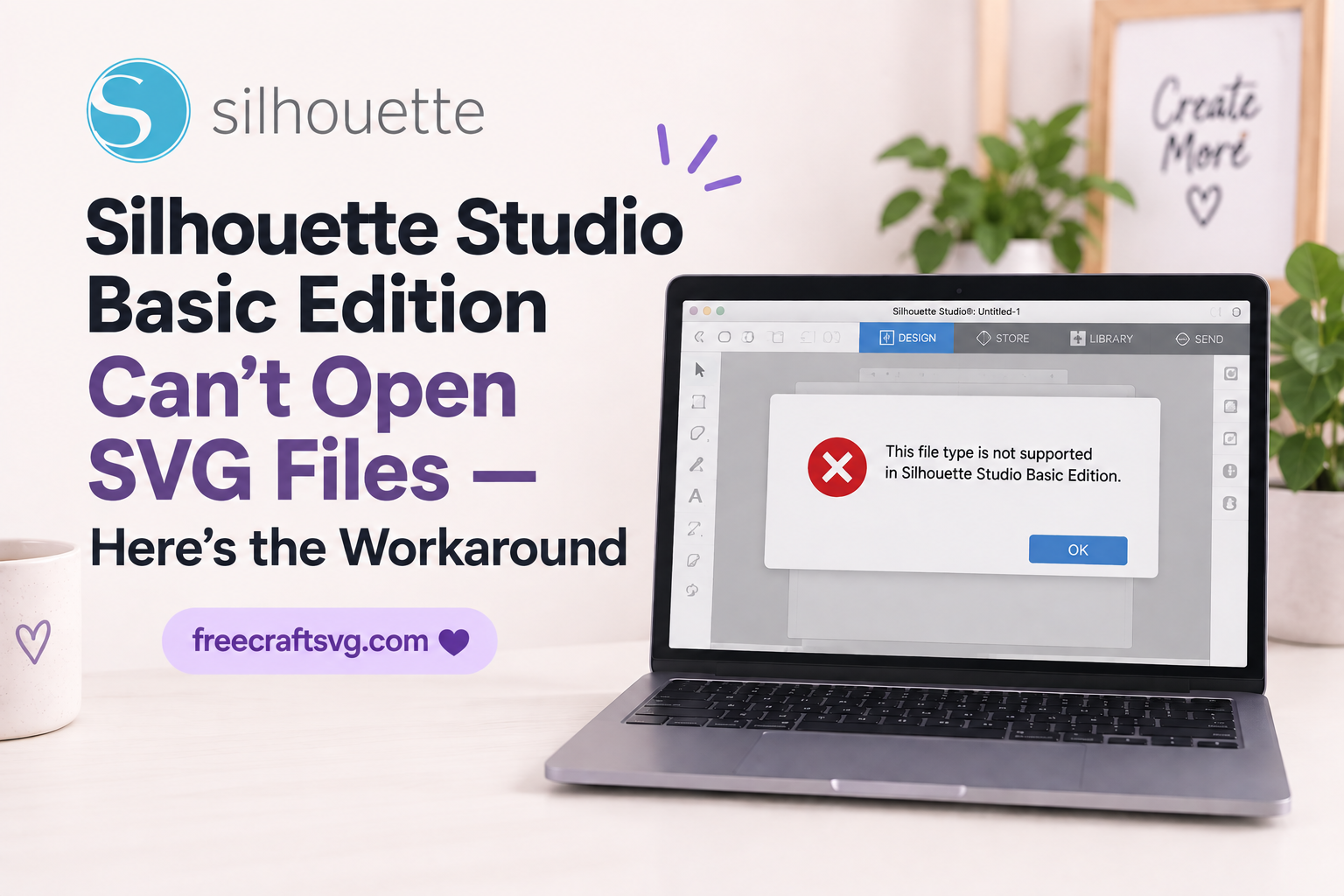
Silhouette Studio Basic Edition Can’t Open SVG Files — Here’s the Workaround
Silhouette Studio Basic Edition can’t open SVG files because SVG import is a paid feature, not something included in the free software. Nothing is wrong with your file, your machine, or your computer. You just need a DXF file instead — and that’s free.
Here’s exactly what’s going on and what to do about it.
Why won’t my Silhouette open an SVG file?
Silhouette Studio comes in several editions. The free one that installs with your machine is called Basic Edition, and it simply doesn’t have the ability to read SVG files built into it.
According to Silhouette America’s own support documentation, SVG import is included in Designer Edition and Designer Edition Plus — the paid upgrades — not in Basic Edition.
So when you double-click a beautiful SVG you just downloaded and Silhouette Studio shrugs at you, throws a “file not supported” message, or won’t even show the file in the browse window, that’s the software working exactly as designed. Frustrating, but not broken.
What file types does Silhouette Studio Basic Edition actually open?
Basic Edition opens cut-ready files in DXF format, plus Silhouette’s own STUDIO and STUDIO3 files and files bought from the Silhouette Design Store.
It also imports image files — JPG, PNG, BMP, GIF and TIF — but those are just pictures. They have no cut lines in them, so you’d have to trace them by hand before your machine knows where to cut.
That leaves DXF as the one truly useful free option. It’s a cut-ready file, it works in Basic Edition, and it doesn’t cost you anything.
What are my options if I only have the free version?
You have three, and they’re all legitimate. Which one is right depends on how often you craft and how much fiddling you’re willing to do.
Option one: buy the upgrade. Designer Edition adds SVG import along with other design tools. At the time of writing, Silhouette lists the digital Designer Edition upgrade at $74.99 on their own site, but it goes on sale fairly often and third-party craft retailers sell license codes too. Check silhouetteamerica.com for current pricing before you buy anywhere else, so you know what a good deal looks like.
If you cut regularly and download files from lots of different designers, this is the option that saves you the most hassle long-term.
Option two: use the DXF instead. Most good SVG designers include a DXF version of every design in the download, precisely because so many crafters are on Basic Edition. If there’s a DXF in your folder, you’re done — just open that one. This is the free workaround, and for most people it’s the right answer.
Option three: convert the SVG to DXF yourself. There are free online converters that will turn an SVG into a DXF. This works, but results vary a lot depending on the design, and very detailed files can come out messy or distorted. Try it if you’re stuck with an SVG and no DXF, but don’t make it your everyday method.
How do I open a DXF file in Silhouette Studio Basic Edition?
Here’s the whole process. It takes about a minute once you’ve done it once.
-
Unzip your download first. Most SVG downloads arrive as a ZIP folder. On Windows, right-click the ZIP and choose “Extract All.” On a Mac, just double-click it. You cannot open files straight out of a zipped folder — this trips up more people than anything else.
-
Find the DXF file. Look inside the unzipped folder for a file ending in
.dxf. It may be sitting in a subfolder named DXF or Silhouette. -
Open Silhouette Studio and start a new blank design page.
-
Go to File, then Open. Browse to your unzipped folder and select the DXF file. If you’d rather add the design to a page you’re already working on, use File then Merge instead — that drops it onto your existing canvas without replacing anything.
-
Don’t panic at how it looks. Your design will appear as plain outlines, usually thin black or grey lines with no fill. This is normal. Keep going.
-
Resize it. Click the design to select it, then set your width or height in the Scale panel. Make sure the “lock aspect ratio” option is ticked so the design doesn’t stretch out of shape.
-
Add color if you like. Select a piece and use the Fill panel to color it in. This is purely so you can see what you’re doing on screen — it doesn’t change the cut at all.
-
Send it to cut. Click Send in the top right, choose your material, and cut as usual.
That’s it. Same design, same cut, no upgrade needed.
Why does my DXF look so plain and boring on screen?
Because DXF is a cut-line format. It carries the shapes and paths your blade follows, and that’s mostly all it carries.
An SVG stores color, layer names and grouping information alongside the shapes. DXF doesn’t do that as reliably, so when the file lands on your canvas you get outlines rather than a finished-looking picture.
It looks unfinished. It isn’t. The blade only ever follows the lines, and the lines are all there.
There are two practical things to know. First, a multi-color design may come in with all the layers stacked on top of each other, so you’ll need to separate the pieces yourself and cut each color on its own mat. Second, DXF files sometimes open at an odd size, so always check your measurements before cutting rather than trusting what appears on screen.
Neither of these stops you making the project. They just mean a couple of extra clicks.
Does FreeCraftSVG include DXF files?
Yes. Every design on FreeCraftSVG comes with a DXF included alongside the SVG and PNG, at no extra cost, so Silhouette Basic Edition users can cut everything on the site without buying anything.
You’ll find the DXF inside the same download folder as the rest of the files. Nothing separate to click, nothing extra to sign up for.
If you’d like something to try the process out on, browse the free Halloween SVGs collection or the free SVG files library and download whichever design takes your fancy. And if you’re planning to sell what you make, have a read of the commercial use page first so you know where you stand.
Frequently asked questions
Will a DXF cut exactly the same as the SVG? Yes. The cut lines are the same shapes. The difference is what you see on the screen, not what the blade does on the mat.
Can I upgrade Silhouette Studio later without losing my designs? Upgrading unlocks extra features in the software you already have — it isn’t a separate program, and your saved files stay where they are. If you have questions about a specific licence, Silhouette’s support team is the right place to ask.
Why does my DXF open with everything in one solid piece? Some DXF files come in as separate shapes that need joining before they cut properly. Select the design, right-click, and choose “Make Compound Path.” That tells the software which parts are cut-outs, like the middle of a letter O.
Is there a free way to convert SVG to DXF? There are free online converters, and they work reasonably well on simple designs. Detailed files are hit and miss, so if a DXF was included with your download, always use that one instead.